
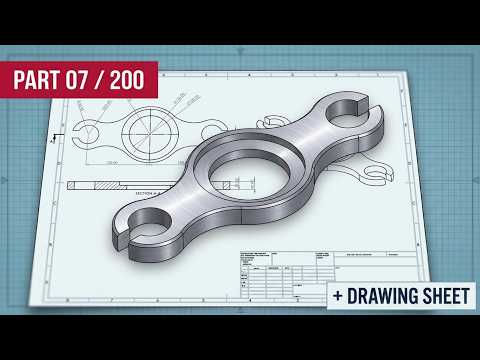
Transitioning from 2D technical drawings to 3D parametric models is a foundational skill for engineers, product designers, and draftspersons. Mastering SolidWorks 3D CAD allows you to visualize complex geometry, run mechanical simulations, and prepare models for manufacturing efficiently. In this practical exercise guide, we break down the step-by-step workflow required to convert detailed 2D blueprints into fully defined 3D components.
Understanding 2D Technical Drawings
Before launching your design software, take a moment to thoroughly analyze the provided 2D drawing. Identify key dimensions, tolerances, geometric relations, and section views. A clear understanding of the orthographic views—top, front, and side—will help you determine the most efficient starting orientation in SolidWorks 3D CAD. Selecting the correct initial sketching plane reduces the total number of features needed and keeps your design tree clean and easy to edit.
From 2D Sketch to 3D Geometry
Once you have established your design intent, follow these essential steps to build your 3D component:
- Base Profile Sketching: Begin on the primary plane (Front, Top, or Right) and sketch the main profile of the part.
- Applying Geometric Relations: Add relations such as concentricity, parallelism, and symmetry to ensure the sketch behaves predictably.
- Smart Dimensioning: Input exact measurements directly from the 2D reference drawing until the sketch geometry turns fully black, indicating it is fully defined.
- Extruding and Cutting: Use features like Boss-Extrude or Cut-Extrude to transform your 2D outline into solid 3D volumes. Repeat this process for secondary features like holes, slots, fillets, and chamfers.
Best Practices for Clean CAD Modeling
A common hurdle when working with SolidWorks 3D CAD is over-defining sketches or creating dangling relations when changes occur. Always aim to define your sketches completely before applying 3D features. Utilize symmetry constraints wherever possible to simplify complex geometry, and rely on reference geometry (axes and planes) for complex or offset features.
Practice Makes Perfect
Regular hands-on exercises are the fastest way to sharpen your technical modeling skills. By consistently practicing 2D-to-3D conversions, you build solid modeling intuition and learn keyboard shortcuts that dramatically accelerate your design workflow. Grab your technical reference drawing, launch your software, and start building today!


