
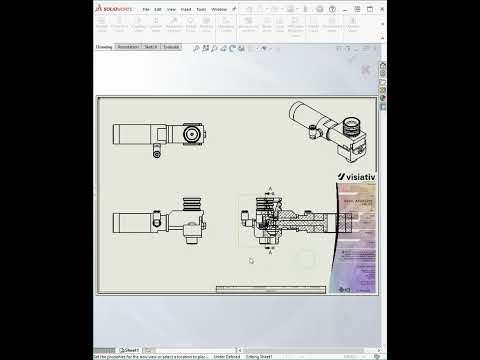
In the fast-paced world of 3D CAD design, efficiency is the difference between meeting a deadline and falling behind. While SOLIDWORKS offers a robust suite of tools for complex engineering, sometimes it is the smallest "quality of life" shortcuts that make the biggest impact on your daily productivity.
Whether you are a seasoned engineer or a design student, mastering these quick drawing view tips will ensure your documentation is as professional as your models. Furthermore, optimizing your drawings in SOLIDWORKS makes the transition to the eDrawings 3D viewer seamless for your clients and stakeholders.
1. Rapid View Generation
The most effective way to speed up your drawing process is to utilize the "View Palette" effectively. Instead of manually inserting each projection, you can drag and drop your standard views directly from the task pane. This ensures that your drawing remains organized and that all projected views are perfectly aligned from the start.
2. Streamlining Annotations and Dimensions
Nothing clutters a drawing faster than messy dimensions. Use the "Auto-Dimension" tool or the "Format Painter" to keep your annotations consistent. When you eventually share your design using the eDrawings 3D viewer, these clean, well-placed dimensions allow collaborators to understand your design intent without any confusion or visual noise.
3. Using Drawing Shortcuts for Clarity
Did you know you can quickly toggle the visibility of hidden lines or change the display style of individual views with a simple right-click? Maintaining a clean visual hierarchy in your 2D drawings is essential. By refining these views in the CAD environment, you ensure that when the file is opened in the eDrawings 3D viewer, the person reviewing the design sees exactly what you want them to see, with high-fidelity detail and clarity.
Why Expert Support Matters
As an award-winning SOLIDWORKS reseller and innovation funding expert, Visiativ understands that software is only as good as the person operating it. Staying updated with quick tips—like those found in our 54-second tutorials—helps you stay competitive in an ever-evolving industry.
By implementing these three simple drawing view tips, you can reduce errors, save time, and provide your team with high-quality files that are ready for review. Start optimizing your workflow today and make your CAD designs stand out in every presentation.


