
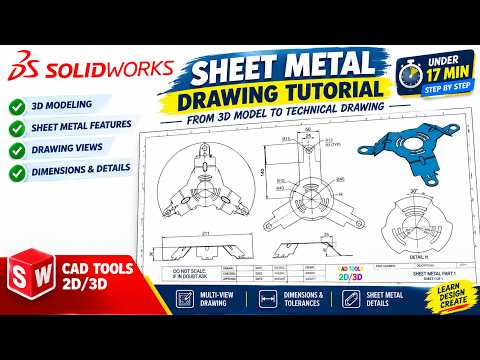
Creating accurate engineering drawings is a crucial step in bringing any sheet metal design from concept to physical manufacturing. While 3D modeling allows you to visualize your component in three dimensions, production teams rely heavily on clear, standardized 2D documentation. Whether you are creating a flat pattern layout or detailing bend lines, mastering how to manage a SolidWorks 2D sketch within drawing sheets is essential for every beginner CAD designer.
In this guide, we will break down the essential steps to turn your sheet metal parts into professional, production-ready engineering drawings in SOLIDWORKS.
Step 1: Initialize Your Sheet and Insert Standard Views
To begin, open your completed 3D sheet metal model in SOLIDWORKS and navigate to File > Make Drawing from Part/Assembly. Choose a standardized drawing template (such as ANSI or ISO) that provides enough layout space for all required views.
Once your sheet opens, use the View Palette on the right sidebar to drag and drop the primary orthographic views—such as the Front, Top, and Side views. Adding an Isometric view with a shaded display style gives fabricators an immediate visual reference of the final product.
Step 2: Utilize Flat Patterns and Apply Dimensions
The most critical aspect of sheet metal detailing is the flat pattern view. SOLIDWORKS automatically generates a flat pattern for sheet metal components, displaying key features such as bend lines, up/down direction notes, and bend angles.
When organizing your layout, refining your SolidWorks 2D sketch geometry and applying Smart Dimensions accurately is vital. Be sure to include: - Overall length, width, and material thickness. - Hole centers and cutout distances referenced from primary datum edges. - Bend radius and angle callouts for press brake operators.
Step 3: Add Annotations and Finalize Your Layout
To ensure clarity on the shop floor, supplement your drawing views with annotations. Inserting a Bend Table automatically catalogs every bend angle, direction, and inner radius into an easy-to-read table, preventing clutter on the main drawing.
By carefully structuring your SolidWorks 2D sketch views and ensuring all dimensions and tolerances are clean and legible, you eliminate ambiguity between design intent and fabrication. Practice these steps on your next sheet metal project to produce professional engineering documentation every time!


