
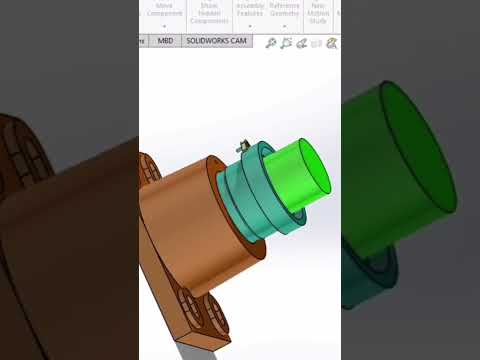
In the modern world of mechanical engineering and industrial design, simply creating a static 3D model is often not enough to convey the complexity of a project. To truly showcase how parts interact, move, and function within a system, designers are increasingly harnessing the power of SolidWorks 3D animation to bring their designs to life.
The Power of Visualization in Engineering
Visualizing a mechanical component in motion serves multiple purposes. Beyond just looking impressive in a portfolio or a client presentation, animation allows engineers to detect potential interferences, understand clearance levels, and verify the mechanical logic of an assembly before a single physical prototype is ever built. By utilizing the Motion Study tools within the software, you can transform a complex assembly into a fluid, visual narrative that explains exactly how a machine operates.
From Static Parts to Dynamic Systems
The transition from a static model to a SolidWorks 3D animation involves a deep understanding of assembly mates and keyframes. The process begins with precise 3D modeling, ensuring that every gear, bolt, and linkage is correctly constrained. Once the physical limits are set, the Motion Study tab becomes the primary workspace. Here, you can apply motors, gravity, and springs to simulate real-world physics.
When creating these animations, it is crucial to focus on the "Timeline." By strategically placing keyframes, you can control the camera angle, component visibility, and the timing of specific movements. This level of control ensures that the viewer's attention is always directed toward the most critical part of the mechanism.
Enhancing Your Workflow
For those looking to elevate their professional output, mastering SolidWorks 3D animation is a transformative skill. It bridges the gap between abstract CAD data and realistic representation. Whether you are creating an "exploded view" animation to show assembly instructions or a high-quality render of a reciprocating engine, the clarity provided by motion is unparalleled.
To get the best results, always remember to: 1. Check your Mates: Ensure there are no redundant constraints that might break the motion. 2. Use High Frame Rates: For smoother playback, especially in complex mechanical movements. 3. Optimize Lighting: Good lighting and appearances make the final render look professional and realistic.
By integrating these techniques into your CAD workflow, you can move beyond basic modeling and start producing high-impact visual content that resonates with stakeholders and clients alike.


