
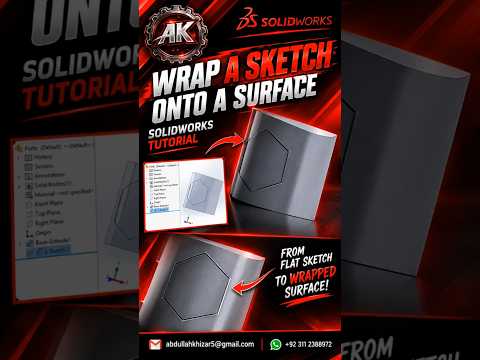
Have you ever needed to project a flat text logo, intricate pattern, or geometric shape onto a cylindrical or curved surface in 3D CAD? Doing this manually can be a major headache. Fortunately, SolidWorks makes this process seamless with its powerful Wrap Tool. Whether you are a beginner looking for a practical SolidWorks 2D tutorial or an experienced designer wanting to speed up your workflow, mastering the Wrap feature is essential for creating high-impact models.
What is the SolidWorks Wrap Tool?
The Wrap tool allows you to take a 2D sketch from a reference plane and project or "wrap" it smoothly around a planar or non-planar surface. Unlike simple extrusions, the Wrap tool conforms precisely to the contours of your target face.
SolidWorks offers three primary methods when using this feature: * Emboss: Adds raised material to the surface based on your 2D sketch. * Deboss: Cuts or engraves the sketch into the curved surface. * Scribe: Imprints the sketch contours onto the surface to divide the face without adding or removing material.
Step-by-Step: How to Wrap a 2D Sketch onto a Curved Surface
Ready to enhance your design skills? Follow these quick steps to convert flat geometry into a wrapped 3D feature:
- Create a Reference Plane: Set up a plane parallel or tangent to the curved surface where you want your design to appear.
- Draw the 2D Sketch: Create your desired text, logo, or profile on this plane. If you need help with sketching fundamentals, practicing with a comprehensive SolidWorks 2D tutorial is a great place to start.
- Activate the Wrap Tool: Go to the Features tab on the CommandManager and select Wrap.
- Choose Parameters: Select your 2D sketch, choose your desired wrap type (Emboss, Deboss, or Scribe), and select the target curved face.
- Set Depth & Confirm: Enter the required extrusion depth or cut thickness, then click the green checkmark to complete the feature.
Elevate Your CAD Designs Today
Using the Wrap tool saves valuable time while ensuring high precision for real-world manufacturing applications, such as branding products, creating grip textures, or adding part numbers to cylindrical components.
By incorporating this technique into your daily workflow, you can quickly transform flat concepts into complex 3D realities. Be sure to explore our ongoing SolidWorks 2D tutorial series to discover more tips that will make your CAD modeling faster, smarter, and more powerful!


