
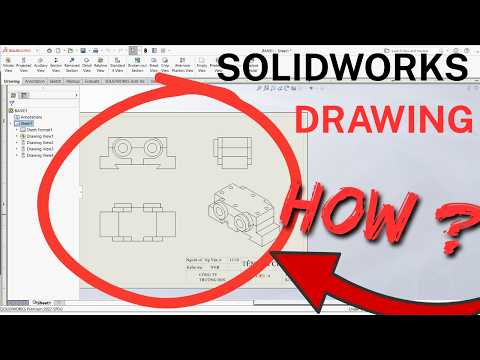
In the world of 3D CAD modeling, creating an impressive 3D component is only half the process. To bring your designs to life on the manufacturing floor, clear and precise 2D documentation is essential. This is where SolidWorks Drawing comes into play, serving as the bridge between conceptual 3D design and physical production.
Understanding SolidWorks Drawing
What exactly is SolidWorks Drawing? It is the dedicated environment within the SolidWorks software suite that allows engineers, architects, and designers to convert 3D parts and assemblies into standardized 2D engineering drawings. These technical drawings communicate critical manufacturing details, such as precise dimensions, tolerances, surface finishes, materials, and revision notes.
How to Create a Custom Drawing Frame and Title Block
One of the most important aspects of a professional engineering document is a well-structured sheet border and title block. Having a customized title block ensures that your branding, project details, and drawing metadata are consistently organized. Here is a basic guide to setting it up:
- Open a New Drawing Sheet: Select a standard paper size (such as A3 or A4) or define a custom size based on your project requirements.
- Access Sheet Format Mode: Right-click on the drawing sheet and select "Edit Sheet Format." This option unlocks the background layer, allowing you to modify border lines and table layouts without affecting drawing views.
- Draft the Title Block Structure: Use basic line and rectangle sketch tools to construct cells for key information, such as Drawing Title, Part Number, Designed By, Date, and Scale.
- Link Custom Properties: Instead of manually entering static text, link text boxes to custom properties (e.g., file name, material, or mass). This enables dynamic updates based on the linked 3D model.
Saving Your Template for Efficiency
Once your layout and title block design are complete, exit the sheet format mode. Save your finalized layout as a Sheet Format (.slddrt) and Drawing Template (.drwdot).
By mastering SolidWorks Drawing setup, you can streamline your CAD workflow, maintain industry standards, and significantly reduce drafting time across all future engineering projects.


