
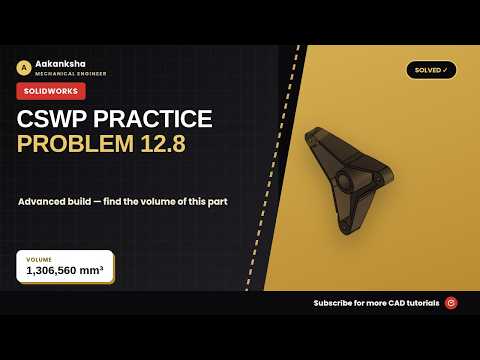
Preparing for the Certified SOLIDWORKS Professional (CSWP) exam can feel daunting, but mastering complex modeling challenges is the key to passing with flying colors. In this guide, we dive deep into solving CSWP Practice Paper Problem 12.8. Whether you are aiming for certification or simply looking to refine your CAD skills, learning how to build a complex SolidWorks 3D model from scratch will elevate your engineering design capabilities.
Breaking Down CSWP Problem 12.8
The problem featured in this tutorial comes directly from official Dassault Systèmes practice materials. These exercises are specifically designed to test your understanding of design intent, feature management, and parametric modeling. Problem 12.8 focuses on creating a robust base geometry and applying precise dimensional modifications.
Before jumping into the software, take a moment to carefully analyze the provided engineering drawing. Identifying primary reference planes and determining the best starting sketch orientation will save you significant time and prevent critical errors down the road.
A Structured Approach to Part Creation
To construct the part efficiently and avoid rebuild errors, follow a logical modeling workflow:
- Establish the Base Sketch: Start on the plane (Front, Top, or Right) that best captures the core profile of the part.
- Apply Parametric Relations: Add geometric relations—such as concentricity, tangency, and symmetry—to ensure your sketch is fully defined without redundant dimensions.
- Build Base Features: Convert your 2D sketches into a solid model using Boss-Extrude, Revolve, or Cut-Extrude tools.
- Incorporate Global Variables: CSWP exam questions frequently require dynamic dimension changes (Variables A, B, C). Setting up an Equation Table early ensures seamless updates for subsequent questions.
By adhering to these fundamental techniques, creating a clean SolidWorks 3D component becomes a systematic process rather than a guessing game.
Final Verification with Mass Properties
In the CSWP exam, accuracy is non-negotiable. Once your model is complete, assign the specified material (such as Alloy Steel or 1060 Aluminum) to the part. Next, navigate to the Evaluate tab and check the Mass Properties. Comparing your calculated mass and center of mass against the multiple-choice options or input field gives you immediate confirmation of your model's precision.
Conclusion
Mastering SolidWorks 3D design takes consistent practice and a practical strategy. By breaking down real CSWP practice papers step-by-step, you build both the speed and precision necessary for exam success. Follow along with the full video tutorial to see every feature creation, dimensioning tip, and shortcut in action!


