
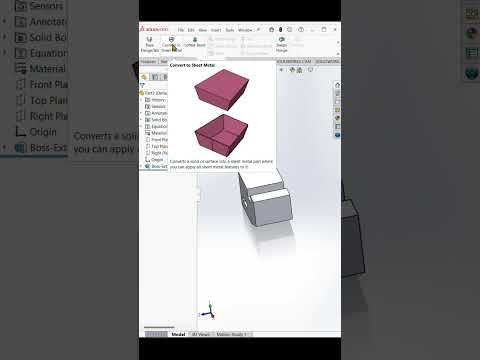
Transitioning from a solid body to a functional sheet metal part is one of the most powerful workflows in modern CAD modeling. Whether you are designing electrical enclosures, mounting brackets, or complex mechanical housings, knowing how to leverage the "Convert to Sheet Metal" tool can significantly streamline your SolidWorks 3D design process. Instead of building sheet metal components from scratch, you can transform existing solid geometry into manufacturing-ready sheet metal parts in just a few clicks.
Why Convert Solid Parts to Sheet Metal?
Creating a solid model first often allows for greater creative freedom and faster initial concepting. However, for actual fabrication, components need flat patterns, bend lines, and precise thickness allowances. Converting solid geometry directly into sheet metal saves time, minimizes design errors, and ensures seamless integration with CNC laser cutting and press brake manufacturing workflows.
Step-by-Step: How to Use the "Convert to Sheet Metal" Feature
- Select the Tool: Open your solid part file in SolidWorks. Navigate to the Sheet Metal tab on the CommandManager and click on Convert to Sheet Metal.
- Specify Parameters: In the PropertyManager, set your desired sheet metal thickness and default bend radius. You can also select a standard Gauge Table if your project relies on specific material standards.
- Choose the Fixed Face: Select the primary face of your solid body that will remain stationary during the flattening process.
- Select Bend Edges: Click on the edges where bends should be created. SolidWorks will automatically calculate the required rip locations and corner reliefs based on your selections.
- Adjust Rip and Relief Settings: Fine-tune the rip gaps and corner relief types (such as rectangular, tear, or obround) to match your fabricator's machinery capabilities.
- Complete and Inspect: Click the green checkmark to execute the command. You can now toggle the Flat Pattern feature to verify how the part unfolds for sheet metal production.
Key Tips for a Smooth Conversion
- Keep Geometry Simple: Ensure your initial solid model has predictable geometry to avoid topology errors during conversion.
- Verify Corner Reliefs: Pay close attention to corner reliefs to prevent material tearing or distortion during physical bending.
Mastering this feature will not only save you valuable engineering time but also elevate the quality and precision of your SolidWorks 3D design projects. Start integrating this technique into your daily modeling routine to optimize your product development pipeline!


