
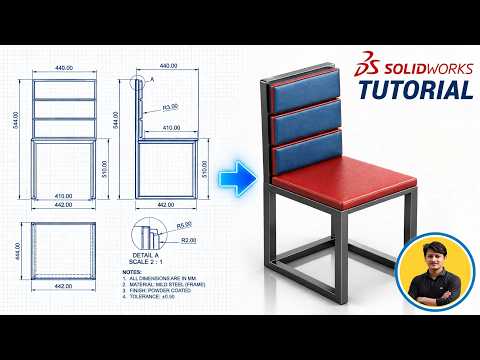
Designing furniture is one of the most effective ways to sharpen your mechanical engineering skills and master the art of parametric modeling. Whether you are a student looking to build your portfolio or a hobbyist exploring industrial design, learning to create a chair is a fundamental milestone. By utilizing the powerful features of SolidWorks 3D, you can transform a simple concept into a detailed, production-ready model.
The Foundation: Sketching and Dimensions
Every great 3D model begins with a precise 2D sketch. In this tutorial, we start by defining the primary planes—front, top, and right—to establish the chair's footprint. Using tools like "Lines," "Splines," and "Smart Dimensions," we create the skeleton of the chair. It is crucial to ensure that your sketches are fully defined; this prevents the geometry from shifting unexpectedly as you add complex features later in the design process.
Bringing the Design to Life
Once the basic framework is established, we move into the 3D realm. This is where your SolidWorks 3D skills truly come into play. We utilize the "Extruded Boss/Base" feature for the seat and the "Swept Boss/Base" tool for more organic shapes like curved legs or a contoured backrest. By manipulating profiles along specific paths, you can replicate the ergonomic curves found in modern furniture design.
Adding Realism and Refinement
A design isn't just about the structure; it’s about the details. To make the chair look professional and realistic, we apply "Fillets" to round off sharp edges, providing a more natural and comfortable appearance. Finally, we dive into the "Appearances" library. Here, you can apply materials like polished chrome, oak wood, or fabric textures to your model.
Mastering these techniques in SolidWorks 3D not only improves your efficiency but also prepares you for complex mechanical assemblies. Follow along with this step-by-step guide, and you’ll go from a blank canvas to a high-quality 3D chair in no time!


