
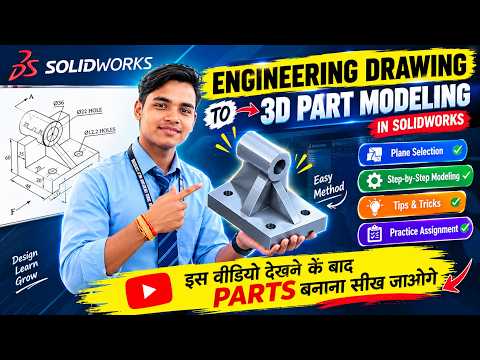
Transitioning from a 2D engineering drawing to a 3D model is one of the most fundamental skills any designer can possess. Whether you are a student or a professional engineer, understanding how to interpret technical blueprints is the first step toward successful product development. In this guide, we will explore the essential techniques for transforming complex drawings into a functional 3D model.
Understanding the Blueprint
Before you even open the software, the most critical step is "reading" the drawing. An engineering drawing provides various views—front, top, side, and isometric—that define the geometry of the object. By carefully analyzing these views and their dimensions, you can plan your modeling strategy. Creating a high-quality SolidWorks Part begins with identifying the primary shape and determining which features are additive (like bosses) and which are subtractive (like holes or cuts).
The Importance of Plane Selection
One of the most common mistakes beginners make is choosing the wrong starting plane. In CAD, you have three primary options: the Front, Top, and Right planes. The "golden rule" is to choose the plane that represents the most descriptive profile of the drawing.
Proper plane selection ensures that your SolidWorks Part is oriented correctly for future assemblies and drafting. For example, if you are modeling a baseplate, starting on the Top Plane is usually the most logical choice, whereas a shaft or a gear might be better suited for the Front or Right Plane.
From 2D Sketch to 3D Geometry
Once the plane is selected, the sketching process begins. Use the dimensions provided in the engineering drawing to create a fully defined sketch. A "Fully Defined" sketch (indicated by black lines in the software) is crucial because it prevents accidental changes to the geometry later.
After the sketch is complete, you can apply features such as Extruded Boss/Base or Revolve. Turning a flat, two-dimensional sketch into a robust SolidWorks Part is a rewarding experience that requires precision and attention to detail. Remember to always double-check your tolerances and hole placements against the original drawing to ensure accuracy.
Conclusion
Mastering the move from 2D to 3D is all about practice and spatial visualization. By focusing on detailed drawing analysis and smart plane selection, you can significantly speed up your design workflow. Keep experimenting with different complex drawings to refine your CAD skills and build more intricate models with confidence.


