
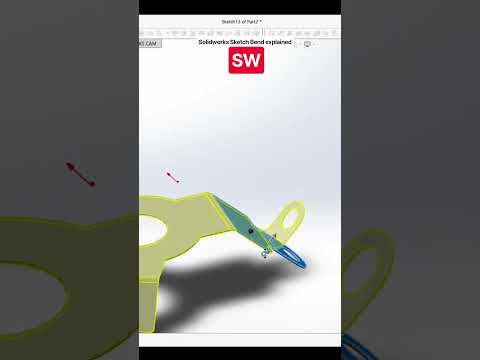
Sheet metal design is one of the most powerful capabilities within modern CAD software, allowing engineers and product designers to create realistic, manufacturable components with high precision. Among the various sheet metal tools available, the Sketch Bend feature stands out as an essential tool for forming precise bends along custom sketch lines. When combined with flexible design techniques like a SolidWorks 3D sketch, designers can unlock new levels of efficiency and accuracy in their sheet metal projects.
In this guide, we will break down what the Sketch Bend feature is, how to apply it step-by-step, and how it fits into your overall design workflow.
What is the Sketch Bend Feature?
The Sketch Bend feature in SolidWorks allows you to add a bend to an existing flat sheet metal body along a sketched line. Unlike edge flanges, which generate brand-new material extensions, a Sketch Bend takes your existing geometry and folds it at a specified angle, radius, and direction based on a single construction line drawn directly on the part's face.
Step-by-Step: How to Apply a Sketch Bend
Using the Sketch Bend tool is straightforward once you understand the basic workflow:
- Select the Surface: Click on the flat face of your sheet metal part where you want the fold to take place.
- Draw the Bend Line: Open a 2D sketch on the chosen face and draw a single line across the area you wish to bend.
- Activate the Tool: Go to the Sheet Metal tab in the CommandManager and select Sketch Bend.
- Define the Fixed Face: Click on the side of the sheet metal part that should remain stationary during the bending process.
- Adjust Bend Parameters: Specify the bend angle (e.g., 90 degrees), bend radius, and bend position relative to the sketch line (material inside, material outside, or bend center line).
- Complete the Feature: Click the green checkmark to apply the bend.
Elevating Your Workflow with SolidWorks 3D Sketching
While individual sheet metal features typically start on a 2D planar face, leveraging a SolidWorks 3D sketch in your broader design process gives you a distinct advantage. Utilizing 3D sketches allows you to map out multi-plane framework paths, visualize complex structural clearances, and reference critical reference points before creating individual sheet metal components.
Whether you are flattening complex panels or organizing detailed assemblies with a SolidWorks 3D sketch, mastering tools like the Sketch Bend feature ensures your designs transition smoothly from conceptual digital models to accurate physical fabrications.


