
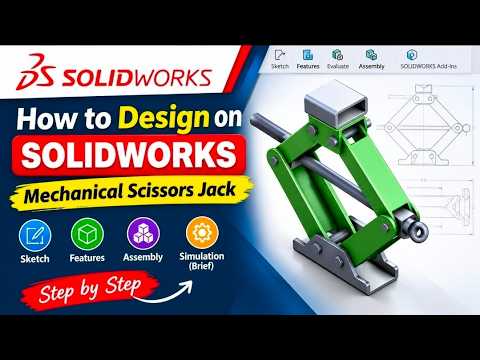
Designing functional mechanical assemblies requires more than just creating 3D parts; it demands a clear understanding of how those components interact in real life. In this comprehensive tutorial, we dive into the step-by-step process of designing a heavy-duty scissor jack and demonstrate how to transform static CAD models into dynamic visual representations using SolidWorks 3D animation.
Step 1: Base Design and Structural Integrity
The foundation of any reliable mechanical tool lies in its base design. When modeling a scissor jack in SolidWorks, precision is key. We begin by establishing accurate parametric sketches, ensuring that every dimension—from mounting holes to load-bearing channels—is configured for realistic stress distribution.
By utilizing robust features like boss extrusions, fillets, and precise geometric relations, you build a solid chassis that properly supports the linkage mechanism. Paying careful attention to part tolerances during this initial modeling phase guarantees that your assembly will function smoothly.
Step 2: Mechanical Assembly and Motion Mates
Once the base model is finalized, the next step involves assembling the interconnected components. Applying appropriate mates—such as concentric, coincident, and advanced mechanical screw mates—is crucial for defining how the lead screw drives the scissor arms upward and downward.
Properly constraining degrees of freedom ensures that your assembly moves realistically without physical clipping or out-of-bounds motion during operation.
Step 3: Bringing the Mechanism to Life
After setting up the assembly relations, it is time to showcase your engineering work. Creating a fluid SolidWorks 3D animation allows you to inspect mechanical interferences, evaluate operational stroke length, and communicate your design intent to clients or teammates effectively.
By leveraging the Motion Study tool, you can attach a rotary motor to the driving screw, triggering a realistic, synchronized elevation of the scissor arms. Rendering this motion produces high-quality video content suitable for design reviews, engineering portfolios, or instructional tutorials.
Final Thoughts
Mastering both precision modeling and SolidWorks 3D animation bridges the gap between mechanical engineering concepts and compelling visual presentations. Whether you are a student, hobbyist, or professional CAD designer, constructing a functional scissor jack from scratch will significantly sharpen your mechanical design skill set. Try applying these technique to your next project and bring your static 3D models to life!


