
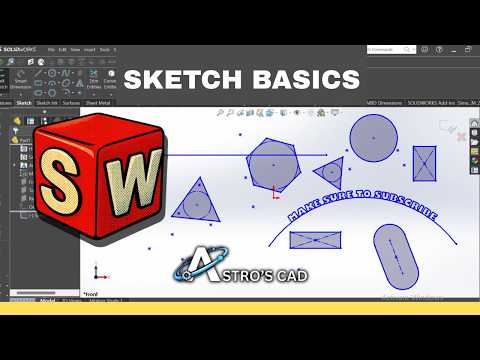
Every great 3D model starts with a strong, precise two-dimensional foundation. If you are new to the world of Computer-Aided Design (CAD), learning how to create and manipulate a SolidWorks 2D sketch is the absolute first step toward mastering 3D parametric design.
In this beginner-friendly guide, we break down the essential sketch tools in SOLIDWORKS and show you how to use them efficiently to turn your ideas into accurate, functional designs.
Essential SOLIDWORKS Sketch Tools Explained
When you open a sketch plane in SOLIDWORKS, the variety of tools available might seem overwhelming. However, most complex mechanical parts are built using a core set of fundamental geometry tools:
- Line & Centerline: The foundation of most profiles. Solid lines define solid geometry, while centerlines act as construction axes for symmetries and revolve operations.
- Rectangle & Circle Tools: Create base structures rapidly using corner rectangles, center rectangles, or perimeter circles.
- Smart Dimension: This tool gives your geometry real-world scale. Smart Dimension lets you define exact lengths, angles, and radii instantly.
- Trim Entities: Clean up intersecting geometry and clear out unnecessary lines to keep your sketch profile ready for extrusions.
Why Mastering SolidWorks 2D Sketching Matters
Understanding how to navigate SolidWorks 2D tools isn't just about drawing basic shapes—it is about building intelligent parametric models. A well-structured sketch ensures that your 3D models remain stable and easy to modify without causing feature errors later in the design process.
While sketching, always aim for a Fully Defined status (indicated by black lines). By combining precise dimensions with geometric relations—such as horizontal, vertical, tangent, and concentric—you ensure your design behaves predictably when changes occur.
Take Your CAD Skills to the Next Level
Developing speed and confidence in SolidWorks 2D drafting takes practice. Start by creating simple two-dimensional profiles, applying appropriate geometric relations, and fully defining your sketch before extruding it into a 3D part.
Whether you are designing complex industrial machinery or simple personal projects, mastering these foundational sketch tools will set you up for long-term success in the world of modern CAD design.


