
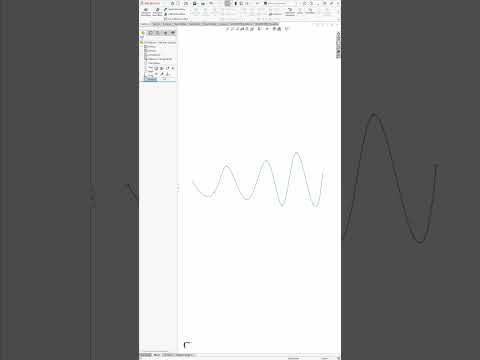
3D CAD design can feel intimidating when you are first starting out, but mastering core tools makes the learning process smooth and rewarding. If you want to elevate your modeling skills with a professional approach, learning how to use the SolidWorks 3D sweep feature is an essential first step. In this guide, we will break down the circular sweep process step-by-step so you can create clean, accurate models with confidence.
What is the Circular Sweep Tool?
The Sweep feature allows designers to create 3D solid bodies or cuts by projecting a 2D profile along a defined path. In SolidWorks 3D, the "Circular Profile" option simplifies this even further. Instead of manually drawing a circular sketch, you simply select a trajectory—such as a line, arc, or spline—and specify your desired diameter. This function is ideal for designing pipes, cables, handles, and complex curved geometry quickly.
Step-by-Step Guide to Creating a Circular Sweep
- Draw the Path Sketch: Start a new part file, select a plane (such as the Front Plane), and sketch the path or trajectory that your circular shape will follow.
- Access the Swept Boss/Base Feature: Go to the Features tab on the top menu and select the Swept Boss/Base command.
- Choose the Circular Profile Option: In the FeatureManager PropertyManager on the left, select "Circular Profile" under the Profile and Path section.
- Set Path and Dimensions: Click on your drawn sketch line to set it as the path, then enter the required diameter value for your circular cross-section.
- Finalize the Model: Review the real-time preview to ensure the design matches your expectations, then click the green checkmark to generate the feature.
Why Beginners Should Master the Sweep Tool
Adopting a structured, step-by-step approach early on ensures that your CAD models remain easy to edit and maintain. Developing an efficient workflow in SolidWorks 3D helps beginners build confidence while establishing industry-standard design practices.
By adding the circular sweep command to your everyday design toolkit, you will save significant time on future engineering and modeling projects. Try applying this technique today and see how easy it is to bring your 3D ideas to life!


