
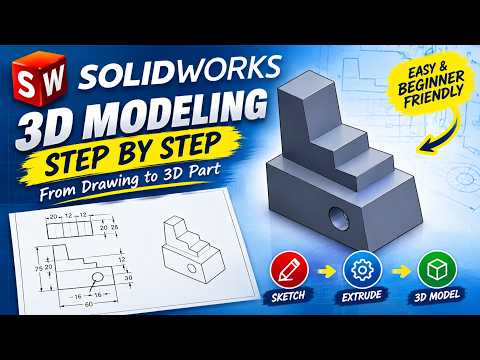
Transitioning from flat engineering drawings to dynamic 3D models is a foundational skill for any aspiring CAD designer. While 3D printing and advanced simulation are exciting modern tools, they all begin with a solid understanding of how to interpret and convert 2D data. In this guide, we will explore how to take your SolidWorks 2D drafting skills to the next level by transforming standard blueprints into functional 3D parts.
The Importance of a Strong Foundation
Before jumping into complex assemblies, you must master the art of the sketch. Most 3D models start as simple 2D shapes on a plane. By refining your SolidWorks 2D drafting techniques, you ensure that your sketches are fully defined, constrained, and ready for extrusion. This precision prevents errors later in the design process and makes your models much more robust when you need to make design changes later.
Step-by-Step: From 2D Sketch to 3D Part
To successfully convert a 2D drawing into a 3D model, follow this essential workflow:
- Analyze the Drawing: Look at the original engineering blueprint. Identify the primary views (Front, Top, and Right Side) and determine which view provides the most detail for your base sketch.
- Create the Base Sketch: Use the Sketch tab to replicate the primary profile. It is crucial to ensure all dimensions match the original 2D specifications exactly.
- Apply Features: Use the "Extruded Boss/Base" tool to give your sketch depth. If the part is cylindrical or symmetrical, the "Revolve" tool might be the better choice.
- Add Secondary Details: Once the main body is created, start adding secondary features such as holes, fillets, and chamfers based on the additional views in the drawing.
Best Practices for Seamless Modeling
When working with SolidWorks 2D drafting, always aim for "Fully Defined" sketches, which are indicated by black lines in the software. Use geometric relations like "Horizontal," "Vertical," and "Tangent" instead of relying solely on manual dimensions. This creates a "parametric" model that updates intelligently, saving you hours of rework during the revision phase.
Conclusion
Converting 2D drawings into 3D models doesn't have to be intimidating. By following a structured workflow and focusing on sketch accuracy, you can bridge the gap between traditional drafting and modern mechanical engineering. Start practicing with simple shapes today, and soon you'll be handling complex blueprints with ease!


