
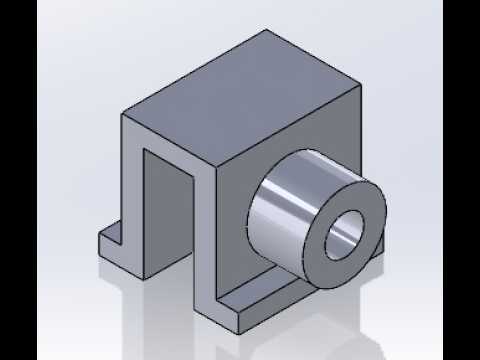
Whether you are an aspiring mechanical engineer or a seasoned designer, mastering SolidWorks 3D modeling is a critical skill for bringing complex industrial concepts to life. In this guide, we break down the process of creating a professional-grade Channel Bracket with a Side Boss, demonstrating how to translate a flat engineering drawing into a high-precision 3D part.
Understanding the Blueprint
The foundation of any successful CAD project is the ability to read and interpret a fully dimensioned engineering drawing. For this Channel Bracket, we focus on maintaining geometric accuracy. Before opening the software, it is essential to analyze the primary features: the U-shaped channel, the protruding side boss, and the mounting holes. By identifying these features early, you can plan your feature tree to be efficient and easy to edit later.
Step 1: Creating the Base Profile
The modeling process begins on the Front Plane. Using the Sketch tool, we draw the profile of the channel bracket based on the provided dimensions. Precision is key here; using the "Smart Dimension" tool ensures that the wall thickness and overall width meet the engineering specifications. Once the sketch is fully defined, we use the "Extruded Boss/Base" feature to give the bracket its depth.
Step 2: Adding the Side Boss
The "Side Boss" is a secondary protrusion that adds functional strength or mounting capabilities to the bracket. To create this, we select the side face of our existing model and start a new sketch. This step showcases one of the most powerful aspects of SolidWorks 3D modeling: the ability to build features upon features. After sketching the circular or rectangular boss, we extrude it to the specified height, ensuring it merges seamlessly with the main body.
Step 3: Finalizing with Holes and Fillets
No mechanical part is complete without functional details. Using the "Hole Wizard" or simple circular cuts, we add the necessary mounting points. Finally, applying "Fillets" or "Chamfers" to the sharp edges not only makes the part safer to handle but also adds a professional, finished look to the digital model.
Conclusion
By following this structured approach, you can tackle even the most intricate mechanical components. Improving your proficiency in SolidWorks 3D modeling requires practice and attention to detail. By mastering the relationship between 2D sketches and 3D features, you are well on your way to becoming a CAD expert capable of handling any design challenge.


