
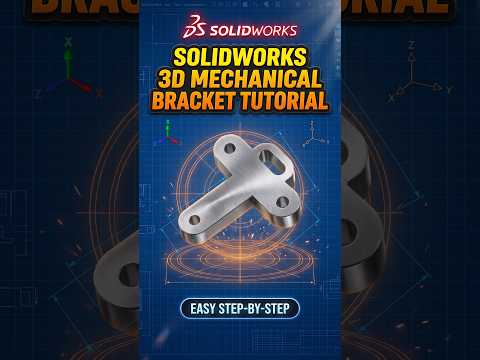
Designing complex mechanical components like custom brackets doesn't have to be a slow, tedious process. Whether you are an experienced engineer or a student getting started with CAD, mastering your SolidWorks 2D layout is the secret to creating precise, functional parts quickly.
In mechanical engineering, the speed of your 3D modeling directly depends on how effectively you structure your initial sketch. Here is how you can streamline your workflow and turn basic parametric sketches into fully realized mechanical components with high speed and accuracy.
Why Master 2D Sketching for Complex Components?
When building intricate brackets, mounting plates, or housing units, starting with a clean SolidWorks 2D sketch allows you to define critical geometric relationships, mounting hole patterns, and functional clearances before creating 3D features. A robust sketch foundation prevents feature errors down the road and makes future design revisions simple.
Instead of adding multiple complex 3D features later, solving your design geometry at the sketch stage keeps your feature tree lightweight and easy to navigate.
Key Workflow Tips for Fast Sketching
To drastically speed up your modeling process, focus on these fundamental best practices:
- Utilize Geometric Relations: Rely on automatic and manual relations—such as concentric, parallel, and symmetric—rather than redundantly dimensioning every entity.
- Leverage Mirror and Pattern Tools: If your mechanical bracket features symmetrical cutouts or repeated mounting features, sketch one half and mirror it to save valuable time.
- Keep Profiles Closed and Clean: Ensure contour sketches are fully defined and properly closed to avoid extrusion errors and build clean solids effortlessly.
- Use Construction Geometry: Utilize centerlines and construction shapes early to position holes, slots, and angled faces with pinpoint accuracy.
Fast-Track Your CAD Productivity
Transitioning from a rough concept to a production-ready mechanical bracket comes down to adopting efficient modeling techniques. By refining your SolidWorks 2D sketching habits, you will save hours of redesign time, eliminate common geometry errors, and elevate your overall engineering workflow.
Start applying these quick workflow tips to your next modeling project and watch your speed and precision soar!


