
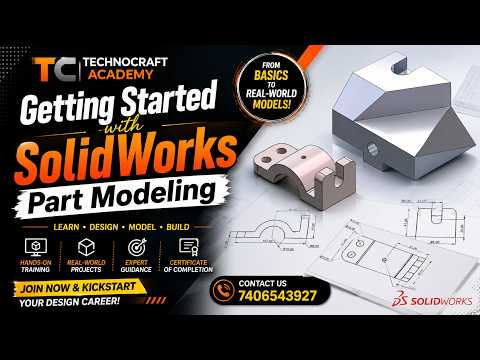
Are you ready to take your engineering and design skills to the next level? Diving into 3D parametric modeling can feel overwhelming at first, but learning SolidWorks opens up endless possibilities for creating precise, professional-grade designs. Whether you are a student, hobbyist, or aspiring engineer, mastering the fundamentals of part modeling is your essential first step.
What is Part Modeling?
Part modeling is the core foundation of Computer-Aided Design (CAD). In simple terms, it is the process of creating individual 3D solid objects using a combination of 2D geometry and 3D features. Every complex mechanical assembly—from simple mounting brackets to intricate engine components—begins with individual parts built one feature at a time.
Key Steps to Create Your First 3D Model
Getting started with 3D design is simpler than you might think. Here is the basic workflow to transform your ideas into 3D geometry:
- Select a Reference Plane: Start by choosing a standard plane (Front, Top, or Right) to create your base drawing.
- Draft a 2D Sketch: Use basic sketching tools like lines, rectangles, and circles to sketch the initial profile of your component.
- Add Dimensions and Relations: Ensure accuracy by applying smart dimensions and geometric relations (such as parallel, perpendicular, or concentric constraints) to control your sketch size and shape.
- Transform into 3D: Turn your 2D sketch into a solid 3D feature using primary tools like Boss Extrude or Revolve.
- Refine Your Part: Polish the model by adding applied features such as fillets, chamfers, or extruded cuts to finalize your design.
Essential Tips for Beginners
To ensure your models are easy to edit and maintain, keep these simple best practices in mind:
- Fully Define Your Sketches: Aim to make all sketch lines black, indicating that all dimensions and positions are fixed. This prevents accidental geometric shifts later.
- Keep Features Simple: Instead of creating one overly complicated sketch, build your model step-by-step using several simpler features.
- Consider Design Intent: Structure your design logically so that future modifications can be made quickly without breaking the model.
Start Building Today
Becoming proficient in SolidWorks takes practice, but mastering these fundamental concepts sets a strong foundation for your design journey. Start experimenting with simple shapes today, and take your first step toward transforming your creative concepts into reality!


