
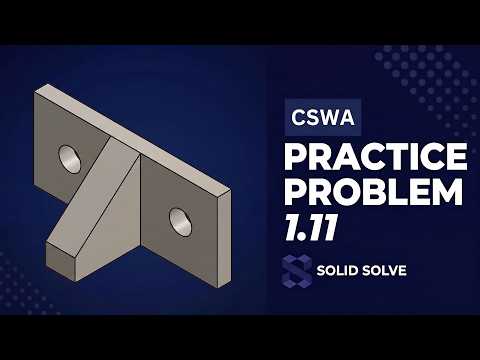
Are you struggling to complete SolidWorks Practice 1.11? You are not alone. Transitioning from basic geometric drawing to creating fully defined, parametric 3D models can feel overwhelming for beginners. However, once you master a few core sketching principles, building accurate 3D CAD models becomes second nature.
In this guide, we break down the essential steps to properly set up your sketch, establish smart relations, and ensure your geometry is fully defined every single time.
Why Tying Your Sketch to the Origin Matters
One of the most common mistakes new designers make is drawing in empty space without anchoring their geometry. In any SolidWorks project, tying your initial sketch entity to the Origin point is absolute best practice.
The Origin serves as the absolute zero reference for your entire part file. When you anchor your sketch to the Origin: - You eliminate unnecessary degrees of freedom right from the start. - Your geometric relations become more predictable and stable. - You prevent unexpected geometry shifts when making future design changes.
Step-by-Step Blueprint for Practice 1.11
To complete Practice 1.11 cleanly and efficiently, follow this structured workflow:
- Select the Right Plane: Begin by choosing the primary plane (Front, Top, or Right) that best matches your part's primary orientation.
- Start at the Origin: Place your initial point, center point, or corner directly on the Origin to establish an immediate anchor.
- Rough Out the Profile: Draw the general shape of your design using basic lines and arcs. Focus on capturing the general form before worrying about precise measurements.
- Apply Geometric Relations: Add constraints such as Horizontal, Vertical, Tangent, and Equal. Letting geometric relations handle the symmetry reduces the number of dimensions you need.
- Add Smart Dimensions: Apply dimensions systematically until all sketch entities turn from blue (Under Defined) to black (Fully Defined).
Achieving "Fully Defined" Status
A fully defined sketch is the backbone of stable parametric modeling. It ensures your design intent remains intact regardless of how complex your model becomes. If any sketch lines remain blue, double-check for missing dimensions or unconstrained endpoints.
By applying these core workflow habits, you will easily master Practice 1.11 and build a solid foundation for more complex SolidWorks modeling challenges ahead.


