
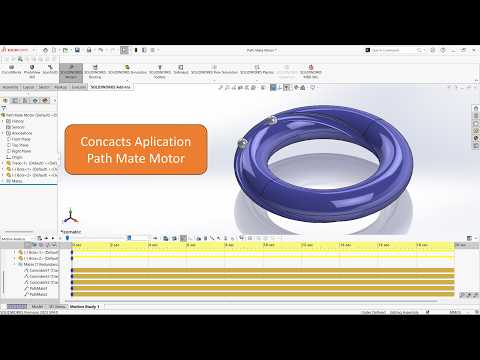
Creating dynamic, realistic animations and motion studies is an essential skill for modern product designers and CAD engineers. When you need a component to move seamlessly along a specific trajectory, traditional mates often fall short. That is where the Path Mate Motor comes into play. If you want to elevate your motion simulation skills using SolidWorks, mastering this versatile tool will significantly enhance your CAD workflow.
Understanding the Path Mate Motor
A Path Mate constrains a selected point on a component to a path defined by a 2D or 3D sketch curve. By combining a Path Mate with a Motion Study motor, you gain precise control over the component's position, velocity, or displacement along that curve over time. This setup is ideal for simulating conveyor systems, guided machinery, cable tracks, and complex mechanical linkages.
Step-by-Step: Adding a Path Mate Motor
Setting up a Path Mate Motor in your assembly is straightforward when you follow these core steps:
- Establish the Path Mate: Before entering the motion study, ensure your assembly includes a valid Path Mate connecting a component point or vertex to a continuous sketch path.
- Open Motion Study: Navigate to the Motion Study tab located at the bottom of the main display screen.
- Insert Motor: Click the Motor tool icon from the Motion Study toolbar.
- Choose Motor Type: In the PropertyManager, select Path Mate Motor as the motor type.
- Select Features & Inputs: Choose your existing Path Mate from the FeatureManager design tree. Specify your preferred motion profile—such as constant speed, distance, or expression-based movement.
- Calculate and Review: Set the desired timeline duration, click Calculate, and play back your animation to verify the movement.
Why Use Path-Based Motion Control?
Relying on Path Mate Motors helps eliminate manual keyframing, saving valuable time during presentation prep. By leveraging SolidWorks for precise motion analysis, you can detect potential geometric interferences early in the design phase and present high-impact visual demonstrations to clients and stakeholders.
Conclusion
Integrating path-driven motion into your functional assemblies allows you to build realistic, data-driven simulations without unnecessary complexity. Apply this feature in your next SolidWorks project to take full control of your motion studies and ensure your designs perform flawlessly.


