
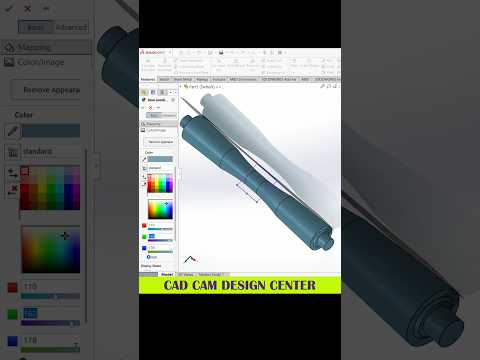
In the fast-paced world of modern design and engineering, mastering Computer-Aided Design (CAD) software is crucial for turning creative concepts into tangible realities. Among the top tools available today, SolidWorks stands out as an industry standard for creating precise, high-quality 3D models. Whether you are designing complex automotive parts or intricate artistic components, refining your modeling techniques can significantly boost your workflow and productivity.
The Power of Efficient 3D Modeling
Creating a 3D model is more than just extruding basic shapes; it requires strategic thinking and a well-structured feature tree. Efficient design practices ensure that your models are easily editable, robust, and fully optimized for manufacturing or rendering. By leveraging smart parametric design tools, engineers and digital artists alike can build versatile 3D models that adapt seamlessly to evolving project requirements.
Key Tips to Elevate Your CAD Workflow
To get the most out of your engineering projects, incorporating a few best practices into your daily modeling routine can make a massive difference:
- Fully Define Your Sketches: Always use smart dimensions and geometric relations to fully define your sketches. This prevents unexpected geometric shifts when making revisions later in the design process.
- Master Keyboard Shortcuts: Customizing your hotkeys for frequently used commands—such as extrude, cut, fillet, and smart dimension—can dramatically cut down your drafting time.
- Maintain a Clean Feature Tree: Name your features logically and group related elements into folders. A well-organized feature tree makes it effortless for colleagues to collaborate on your SolidWorks files.
- Leverage Display States: Use display states to quickly toggle component visibility and appearances. This helps you focus on specific design details without cluttering your workspace.
Conclusion
Mastering digital design is a continuous journey of learning and experimentation. By discovering smart modeling tips and consistently refining your approach, you can transform complex concepts into stunning 3D visualizations using SolidWorks. Start implementing these practical strategies today to streamline your modeling workflow and bring your design ideas to life with confidence.


