
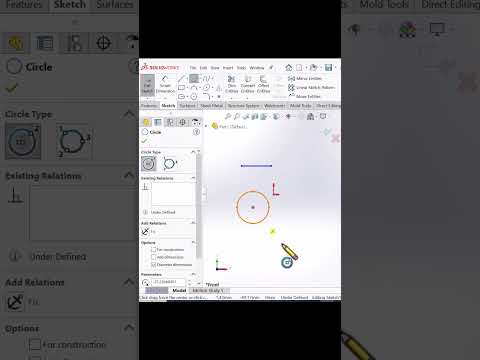
In 3D CAD design, efficiency is everything. Whether you are a student drafting your first part or an experienced engineer managing complex assemblies, unnecessary mouse clicks can quickly add up and slow down your workflow. Learning how to master shortcut keys in SolidWorks is one of the most effective ways to slash design time, reduce wrist fatigue, and streamline your entire modeling process.
Essential Default Shortcuts Every Beginner Should Know
When starting out, memorizing a few core hotkeys can instantly boost your drafting speed. Here are some of the most important default keys to incorporate into your daily routine:
- S Key (Shortcut Bar): Pressing 'S' opens a contextual menu tailored specifically to your active workspace (Part, Assembly, Drawing, or Sketch). It brings your most-used commands directly to your cursor.
- Spacebar (Orientation Dialog): Tap the spacebar to instantly open the Orientation menu, allowing you to switch between front, top, side, or isometric views in seconds.
- Ctrl + 8 (Normal To): Quickly align your view perpendicular to the selected sketch plane or flat surface.
- Ctrl + B (Rebuild): Instantly update and refresh your model after making edits or feature changes.
How to Customize Your Own Keyboard Shortcuts
While the default keys are great, customizing your interface unlocks maximum productivity. SolidWorks allows users to personalize almost every command to fit their specific design habits.
To customize your hotkeys: 1. Navigate to Tools > Customize and select the Keyboard tab. 2. Search for the command you use frequently (such as Smart Dimension or Extruded Boss/Base). 3. Assign an unused single key or custom key combination. 4. Click OK to save your preferences.
Pro Tip: Assign single-letter keys (like 'D' for Smart Dimension or 'L' for Line) to tools you use hundreds of times a day to minimize unnecessary hand movement.
Building Muscle Memory for Maximum Efficiency
Mastering keyboard shortcuts will not happen overnight. Start by integrating 2 to 3 new hotkeys into your workflow each week until they become second nature. As you build muscle memory, navigating SolidWorks will feel completely seamless, allowing you to spend less time clicking through toolbars and more time bringing your design ideas to life.


