
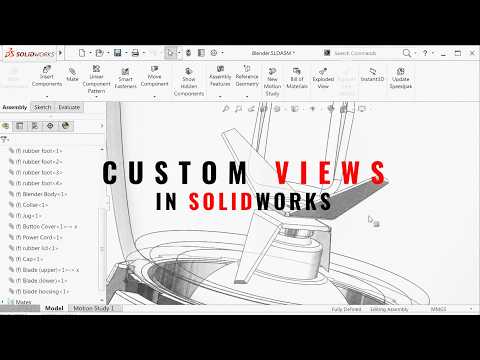
Working with large assemblies can often turn a quick design review into a frustrating experience. Rotating, zooming, and hunting for specific components inside complex 3D models consumes valuable time that engineers could spend on actual design work. Fortunately, there is a simple configuration tweak that significantly streamlines your workflow and speeds up every single assembly review.
Why Assembly Reviews Become a Bottleneck
When presenting a complex design to stakeholders or conducting an internal design check, clarity and speed are essential. Manually orienting your model to highlight intricate internal mechanisms or specific sub-assemblies breaks the flow of your presentation. Standard isometric views often fail to show the exact angles needed to inspect critical features, leading to unnecessary manual adjustments and wasted effort.
The Hidden Gem: Custom Views
The key to eliminating this friction lies in mastering Custom Views. By setting up custom view orientations in SolidWorks, you can pre-define exact camera angles, zoom levels, and focus points tailored specifically for your review sessions. Instead of manually manipulating the model on the fly, you can toggle between key inspection areas with a single click.
This underutilized feature is particularly powerful when managing complex assembly modeling projects. It allows you to create designated perspective views for different components—such as structural frames, internal gearing, or electrical routing—ensuring every reviewer sees precisely what they need without distracting CAD navigation.
How to Boost Your CAD Efficiency
To implement this trick, simply orient your 3D model to the desired perspective, open the View Orientation dialog, and save it as a new named view. Integrating this efficient SolidWorks workflow into your daily routine drastically reduces review times, improves team collaboration, and elevates your overall productivity. Give this simple SolidWorks setting a try during your next project to experience seamless assembly reviews!


