
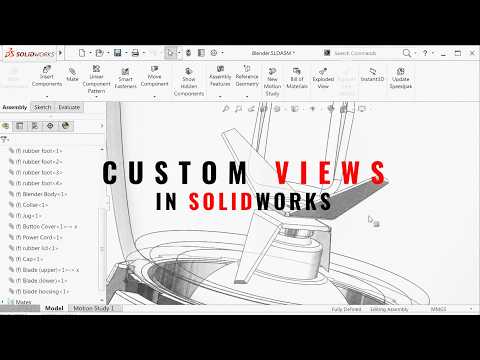
In the world of professional 3D design, efficiency is king. If you’ve ever found yourself struggling to navigate through a massive assembly during a critical design review, you know how frustrating it can be. Most engineers rely on standard views or manual rotation, but there is a specific workflow optimization in SolidWorks that can change the way you manage your projects forever.
Why Assembly Reviews Often Feel Sluggish
When dealing with complex modeling projects, performance isn't just about your computer's hardware; it's about your workflow. Traditional methods of zooming into specific components and rotating the model manually waste valuable seconds. Over the course of a long work session, these minor delays add up to hours of lost productivity. This is where mastering custom views becomes a complete game-changer for any serious designer.
The Power of Custom Views in SolidWorks
The "secret" that many professionals overlook is the strategic use of Custom Views. Instead of fighting the orientation triad every time you need to check a specific clearance or sub-assembly, you can define precise viewpoints that are saved directly into your file.
By utilizing the Orientation dialog box (accessible via the Spacebar shortcut), you can capture the exact camera angle, zoom level, and even component visibility states needed for your review. This SolidWorks feature allows you to jump between critical inspection points instantly, ensuring that your design meetings stay on track and no technical detail is missed during the process.
How to Set Up Your Workflow for Speed
To implement this, simply orient your model to the desired position and click the "New View" icon in the Orientation window. Give it a descriptive name like "Manifold Clearance" or "Sensor Alignment." Once saved, these views are accessible at any time.
For those looking to take it a step further, mapping these views to specific keyboard shortcuts or a 3D mouse can shave even more time off your process. This small adjustment transforms SolidWorks from a standard modeling tool into a high-speed review engine, allowing you to focus on engineering rather than navigation.
Final Thoughts
Efficiency in CAD design is often found in the hidden settings we tend to ignore. By integrating custom views into your assembly modeling routine, you eliminate the friction of manual navigation and focus on what really matters: engineering excellence and faster time-to-market.


