
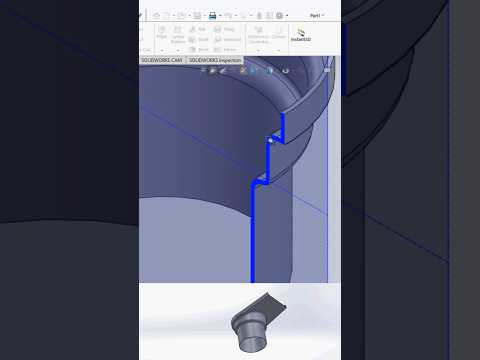
When designing complex 3D models, converting delicate surface sweeps into robust solid parts can sometimes feel like a tedious bottleneck. However, mastering a few core CAD techniques can dramatically cut down your modeling time. If you want to speed up your design workflow, one essential feature you need to know in SolidWorks is the Thicken command.
What is the Thicken Command?
The Thicken command is a powerful tool designed to transform surface bodies or zero-thickness geometry into fully solid components. Whether you are working on organic surface sweeps, thin-walled enclosures, or complex consumer product hulls, this tool allows you to add precise, uniform wall thickness with just a couple of clicks.
Instead of creating additional offset sketches or building complex closed profiles from scratch, this command automatically offsets surface normal vectors to generate clean solid geometry instantaneously.
Step-by-Step: Adding Thickness in Seconds
Transforming your surface geometry into a solid model is remarkably simple when you follow this streamlined process:
- Select Your Surface: Open your model and select the surface body or sweep you want to turn into a solid.
- Activate the Feature: Navigate to the Features tab on your CommandManager and select the Thicken tool.
- Specify the Offset Direction: Choose how you want the thickness applied—outward, inward, or symmetrically on both sides relative to the target surface plane.
- Set the Dimension: Enter your desired wall thickness value for precise, uniform measurement.
- Confirm: Click the checkmark to execute the command and instantly generate your solid part.
Pro Tips for Flawless Geometry
While the command is straightforward, keeping a few best practices in mind will prevent rebuild errors in SolidWorks:
- Check Curvature Radii: Ensure your surface's minimum radius of curvature is larger than the thickness value you intend to apply. Attempting to thicken tighter than the surface radius will lead to self-intersecting geometry errors.
- Leverage Merge Results: If you are adding thickness to a surface directly touching an existing solid body, use the "Merge Result" checkbox to unite the solid geometries seamlessly.
By incorporating this quick tip into your daily modeling routine, you can eliminate unnecessary design steps and significantly optimize your workflow in SolidWorks. Try it out on your next project to experience faster, more accurate 3D CAD modeling!


