
In the world of 3D design, efficiency and precision are paramount. One of the most powerful tools for managing complex geometries is the Combine command. Whether you are designing intricate mechanical components or stylized consumer products, understanding how to manipulate multiple bodies within a single part file is essential for any professional designer.
What is the Combine Command?
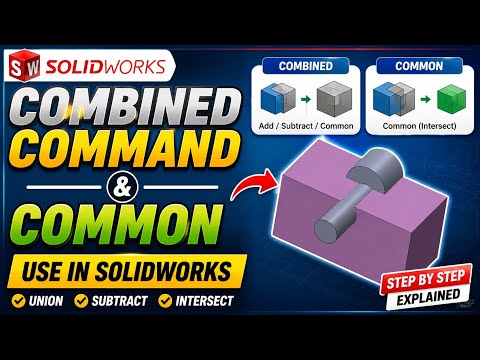
The Combine command is a boolean operation tool used to merge, remove, or find the overlapping volume of multiple solid bodies. Unlike simple sketching, this feature operates on the 3D volumes themselves. To use it, you must have at least two separate solid bodies within your part file. Using the Combine command in SolidWorks allows you to manipulate multi-body parts with surgical precision, transforming separate entities into a single, cohesive geometry.
Exploring the Three Main Operations
There are three primary modes within the Combine property manager: Add (Union), Subtract, and Common (Intersect). Each serves a unique purpose in the modeling workflow:
- Add (Union): This is the most straightforward operation. it takes two or more separate solid bodies and fuses them into one single body. This is ideal when you have created different components of a part separately and need them to behave as a unified object for mass properties or simulation.
- Subtract: This acts like a "cookie cutter." You select a "Main Body" and a "Body to Subtract." The tool removes the volume of the second body from the first. This is incredibly useful for creating molds, cavities, or complex cutouts that would be difficult to achieve with standard extruded cuts.
- Common (Intersect): This mode keeps only the volume where the selected bodies overlap. Everything else is discarded. This is a "secret weapon" for advanced surfacing and creating complex shapes derived from the intersection of two different profiles.
Why Use Boolean Operations?
Mastering these boolean operations within SolidWorks will significantly speed up your workflow. Instead of trying to sketch complex profiles on curved surfaces, you can create two simple solids and use the Subtract or Intersect commands to find the perfect fit. This "top-down" approach at the part level ensures that mating surfaces are perfectly aligned and reduces the margin for error in your designs.
By incorporating the Combine command into your daily modeling routine, you gain greater control over your geometry. Whether you are subtracting a bolt hole pattern or intersecting two lofted shapes, these tools are the foundation of sophisticated 3D modeling. Open up SolidWorks today and experiment with these features to see how they can simplify your most challenging design projects.


