
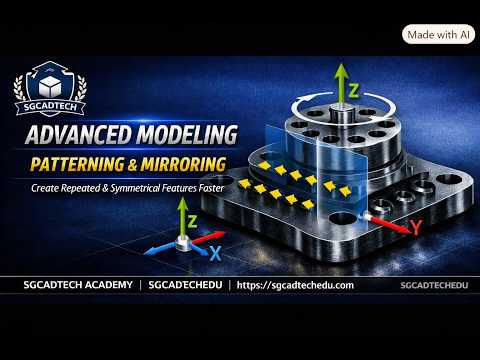
In the fast-paced world of 3D design and mechanical engineering, speed and precision are the twin pillars of success. One of the most effective ways to achieve both is by mastering automated features. In this guide, we dive deep into the latest version of SolidWorks to explore the Linear Pattern tool, a fundamental yet powerful feature for any serious designer or student.
Why Mastering Linear Patterns Matters
When working on complex assemblies or highly detailed parts, creating every hole, slot, or rib manually is not just tedious—it is inefficient. The Linear Pattern tool allows you to replicate features, faces, or bodies along one or two linear paths. This functionality ensures that your design remains parametric; if you change the dimensions of the original "seed" feature, every instance in the pattern updates automatically. This level of control is essential for maintaining accuracy across large-scale projects.
Advancing Your Modeling Skills in SolidWorks 2026
The 2026 update continues to refine the user experience, making advanced modeling feel more intuitive than ever. For those pursuing Higher National Diploma (HND) level engineering or professional certifications, understanding the nuances of the PropertyManager is crucial. Beyond simple spacing and instance counts, the latest SolidWorks interface allows for sophisticated controls such as "Instances to Skip" and "Up to Reference" geometry. These options allow you to create complex arrays that adapt dynamically to the edges of your model, which is a hallmark of professional-grade CAD work.
Practical Steps for Success
To begin a linear pattern, first select the feature you wish to duplicate. Define your primary direction by selecting a linear edge, an axis, or a dimension. In the PropertyManager, you can choose between "Spacing and Instances" or "Total Spacing."
For more advanced applications, don't overlook the "Vary Sketch" option. This allows the patterned instances to change their dimensions based on the geometry of the part, such as a pattern of slots that get shorter as they approach a curved edge. By integrating these advanced techniques into your daily workflow, you will significantly reduce design time and minimize the risk of manual errors.
Mastering these tools is about more than just knowing where the buttons are; it is about developing a strategic approach to 3D modeling that prioritizes flexibility and long-term editability.


