
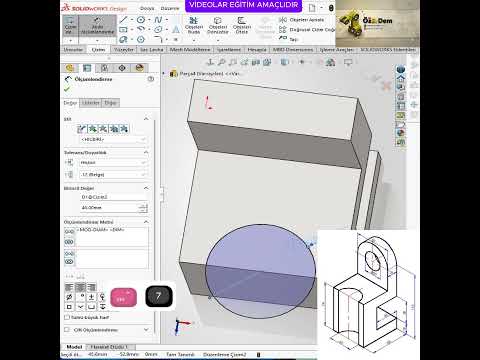
Are you looking to dive into the world of 3D Computer-Aided Design (CAD)? Learning to model simple, fundamental parts is the single best way to build a strong engineering foundation. Among the industry-standard design tools available today, SolidWorks stands out as an intuitive and powerful platform ideal for engineers, students, and hobbyists alike.
Whether you are utilizing an educational version or exploring CAD software for the first time, starting with simple geometries allows you to master essential modeling concepts without feeling overwhelmed.
Why Focus on Simple Part Designs?
When beginners jump straight into complex, multi-part assemblies, they often face a steep learning curve. Focusing on basic single-part components helps you grasp core parametric modeling workflows, such as:
- Creating clean and fully defined 2D sketches.
- Applying accurate geometric relations and dimensions.
- Transforming 2D drawings into solid 3D geometry using base features.
By regularly practicing simple component creation, you develop crucial muscle memory for tool placement, view orientation, and efficient feature trees.
Key Steps to Build Your First 3D Model
- Select the Right Sketch Plane: Begin by choosing the Front, Top, or Right plane based on how your final part should be oriented.
- Draft the Base Profile: Use simple sketching tools such as lines, rectangles, and arcs to outline the primary shape of your component.
- Dimension and Constrain: Apply Smart Dimensions to define exact measurements. Always aim for a "Fully Defined" sketch to ensure model stability.
- Generate 3D Geometry: Use feature commands like Extruded Boss/Base to add material, or Extruded Cut to create holes and cutouts.
Learning with the SolidWorks Educational Version
For students and self-taught enthusiasts, the SolidWorks educational version offers a complete environment to learn mechanical design. It provides access to all essential tools required for sketching, solid modeling, and technical drawing creation. Practicing daily with basic tutorial models within this environment will rapidly build your technical confidence.
Final Thoughts
Mastering parametric 3D design doesn't happen overnight, but taking a structured, step-by-step approach makes the process engaging and fun. Start practicing basic part creation today, refine your sketching habits, and unlock your full design potential!


