
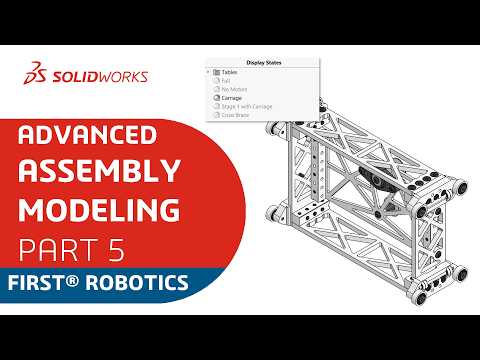
Managing large, intricate 3D models is one of the most challenging aspects of modern CAD design. Whether you are building a complex FRC robotics system or designing industrial machinery, working with massive assemblies in SolidWorks can quickly bog down your workspace and slow down your workflow. Fortunately, there is a powerful feature designed specifically to declutter your visual space without altering your underlying geometry: Display States.
What Are Display States?
Unlike configurations that modify feature suppression or part dimensions, a SolidWorks Display State strictly controls visual properties. This includes component visibility, appearance (colors and textures), transparency, and display modes (such as wireframe or shaded with edges). Because Display States do not recalculate feature trees or rebuild geometry, switching between them is practically instantaneous, making them an exceptionally fast way to organize complex projects.
Streamlining Complex Subsystems and Team Collaboration
When working in large design teams—such as FIRST Robotics Competition (FRC) teams—communicating design intent clearly is essential. Display States allow engineers to isolate specific subsystems, such as a robot's drivetrain or intake mechanism, while temporarily hiding or fading surrounding components.
By utilizing Display States, your team can: - Simplify Complex Assemblies: Hide non-essential components to focus on specific sub-assemblies without affecting top-level assembly performance. - Improve Communication: Highlight key mechanism paths or electrical routing using distinct colors and transparency levels to guide teammates and reviewers. - Maintain Organization: Quickly toggle between different visual setups for rendering, technical documentation, or design reviews without creating cluttered configurations.
Best Practices for Getting Started
To maximize efficiency, establish clear naming conventions for your Display States early in the project. You can choose to link Display States to specific configurations or keep them independent depending on your design goals. By mastering this simple yet versatile tool, you will streamline your modeling process, reduce visual distraction, and elevate your SolidWorks skills to a professional standard.


