
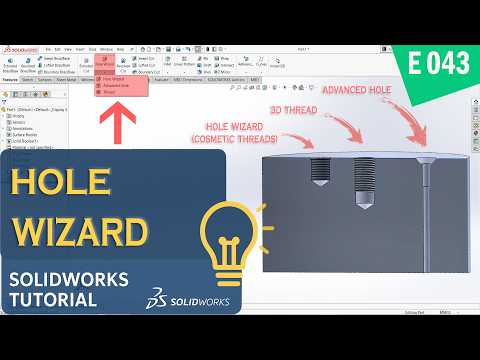
Creating standardized industrial holes and threads is an essential skill for any mechanical engineer or CAD designer. Stop manually sketching circles and extruding cutouts for every fastener! By leveraging SolidWorks' specialized features, you can drastically speed up your modeling workflow while maintaining exact manufacturing standards. Whether you are expanding your foundational drafting skills or searching for a comprehensive SolidWorks 2D tutorial guide, mastering industrial threads will transform the quality of your designs.
1. Work Smarter with the Hole Wizard
Instead of drawing simple circles in a sketch and using the Extruded Cut tool, the Hole Wizard is your ultimate tool for industrial standardization. It offers predefined hole types—including counterbore, countersink, tapped, and pipe tap holes—based on international standards such as ANSI Metric, ISO, and DIN.
Integrating the Hole Wizard into your regular SolidWorks 2D tutorial practice ensures that your technical drawings automatically include accurate hole callouts. This eliminates guesswork for machinists and prevents costly manufacturing errors during production.
2. Cosmetic Threads vs. 3D Threads: When to Use Which?
SolidWorks provides two distinct methods for adding threads to your components: Cosmetic Threads and 3D Threads. Choosing the right approach depends on your project goals.
- Cosmetic Threads: Best for standard production parts and complex assembly drawings. They display a graphical representation of the thread without creating heavy geometry. This keeps your file sizes small and performance lightning-fast.
- 3D Threads: Ideal for 3D printing, realistic renderings, or custom thread pitch applications. The Thread Tool generates actual helical geometry along the shaft or hole. However, use them deliberately, as detailed 3D geometry requires significantly more computational power.
3. Elevate Your CAD Workflow
Understanding how to properly apply standardized hole dimensions and thread types is crucial for creating professional manufacturing files. By moving beyond basic sketching concepts covered in a standard SolidWorks 2D tutorial, you can produce hardware-ready models ready for real-world production.
Start implementing the Hole Wizard and thread tools in your next project to save modeling time, optimize rendering performance, and produce accurate engineering documentation.


